Agentic Computer-Use

OpenAI Codex
OpenAI Computer-Use (aka “SkyComputerUseClient”) is now officially available in the EU. Allowing Codex to operate directly on third party apps makes context management easier: it can use already logged-in browser sessions and click through documentation that isn’t prepared for AI intake. Also, goal verification becomes easier as it can visually operate & inspect web pages and the Xcode Simulator straight.
Uninstalling inofficial Computer-Use
Before installing via the official channel, I removed the existing footprint by asking:
I had previously installed Computer-Use manually. Please uninstall.
In addition, I deleted the corresponding Computer-Use app from Applications.
Installing (on macOS)
Computer-Use is a Plugin, so choose “Plugins” from the sidebar on the left and search for “Computer Use”. The uninstalling procedure above must have left things behind, so I first tapped the Delete button and “Add” after:
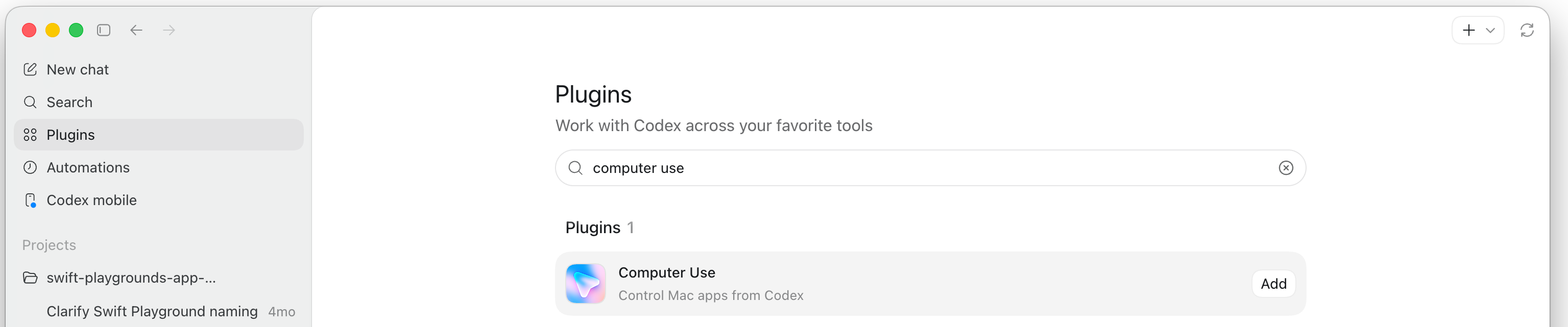
(There is also a “Chrome” plugin, but since I usually use Safari, I haven’t tried that yet).
When having used Computer-Use before it was officially available, the system won’t ask for permissions again. Otherwise, typical permission requests include recording the screen and controlling the computer.
Trying
GPT-5.4 Mini/Low is enough to operate Safari, so for a basic test you don’t have to waste GPT 5.5 tokens:
Check if the Computer-Use skill works: open ndurner.de and return the three latest blog post titles. Report any issues.
“List Mac Apps” and “Looked at Safari” during the chain-of-thought confirms the correct access route:

(Codex could theoretically also use Apple Script, so a correct result doesn’t mean correct mode of operation).
Claude Code
An alternative that works with Claude Code is the Cua Driver open-source project.
Installing (on macOS)
Execute the curl-downloaded installer command provided on the website
Set up permissions:
~/.local/bin/cua-driver permissions grantCreate infrastructure (for both Codex and Claude Code in this case):
mkdir -p ~/.claude/skills ~/.agents/skillsInstall the skill pack:
~/.local/bin/cua-driver skills install(Installing and adding the MCP doesn’t seem to be strictly required)
Trying
Claude Code then knows about the “cua-driver” skill and will use it e.g. if you ask to use some documentation that you already have open:
⏺ Let me start the cua-driver daemon and locate Safari to read the documentation tabs.
⏺ Bash(cua-driver serve >/dev/null 2>&1 & sleep 1; cua-driver start_session ‘{”session”:”…”}’ 2>&1; cua-driver
list_windows ‘{”pid”:0}’ 2>&1 | head -5; echo “-…)
Different approaches, Claude Cowork
Both the OpenAI and the CUA AI approaches require far ranging permissions to operate the computer. For those who want to give more narrow web access, or use Claude Cowork:
Integrated Browser: Codex has an “integrated browser” tool that can opened from the right side bar for interactive access, e.g. login. Codex can operate on that. Drawback: doesn’t share the regular browser state like login cookies.
Chrome DevTools Active Port: when allowing access to Chrome through this developer feature, agents can drive Chrome directly. This can be done through an MCP server, but even a skill suffices. (There is also an official Google MCP server, but this relies on the npm ecosystem). I have had success with the MCP for Claude Cowork on Windows.
BrowserHarness is another open-source project that uses the ActivePort. It seems to have gained Windows support by now, but I haven’t used it since.
Standalone embedded browser: the puppeteer or playwright projects were popular options before Computer-Use or Chrome DevTools Active Port gained traction. Perhaps the easiest to sandbox and restrict.